Changing Your Email Address / Password and Setting Up Two-Factor Authentication
https://login.arim.mdx.jp/realms/ARIM-mdx/account
Open the URL above to manage your account information.
Note
The screenshots below show the account console in Japanese. The labels in English are given in the text. You can switch the display language with the Select a locale drop-down on the Personal info page.
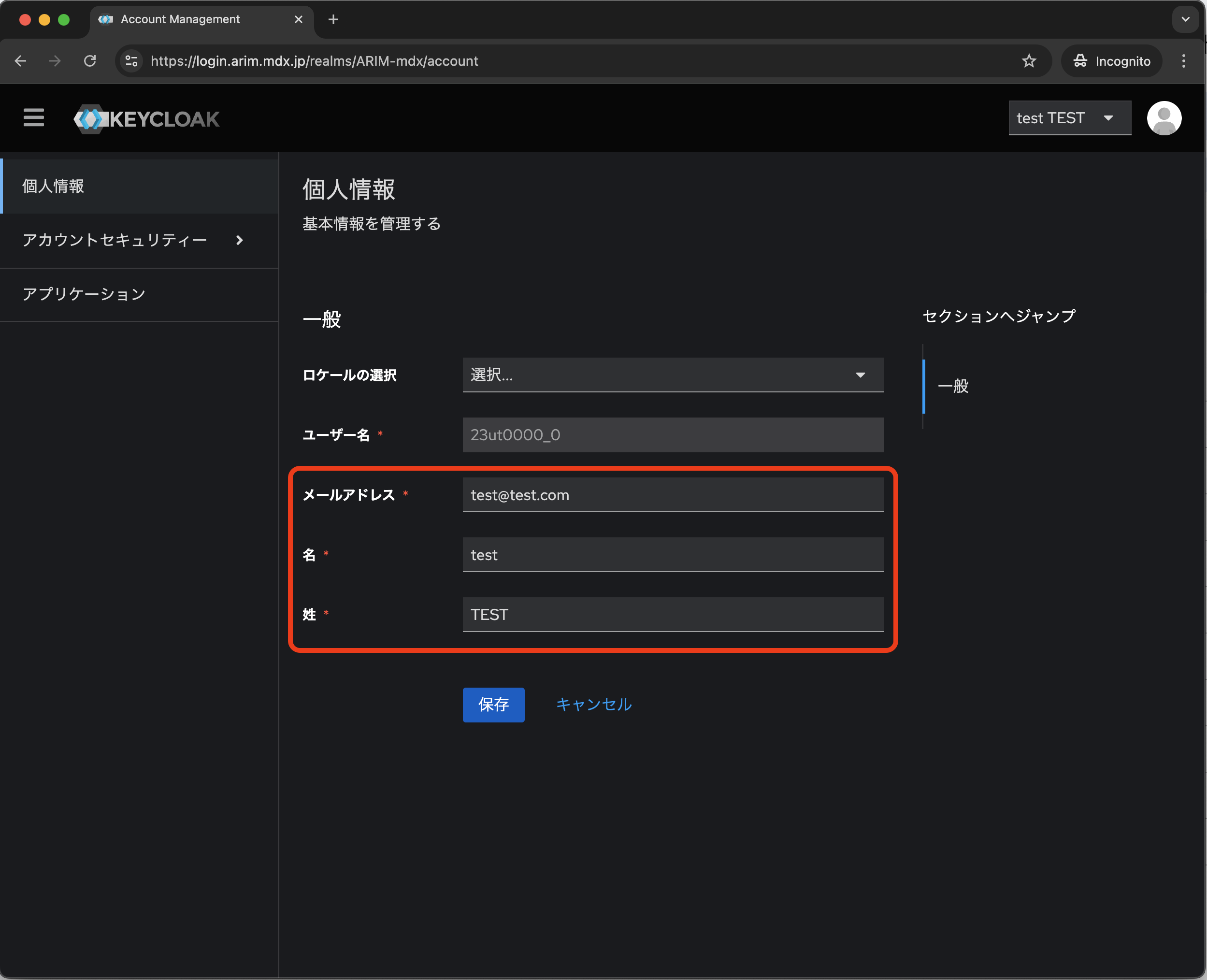
1. Changing Your Email Address
On the Personal info page, you can change your email address and name.
2. Changing Your Password
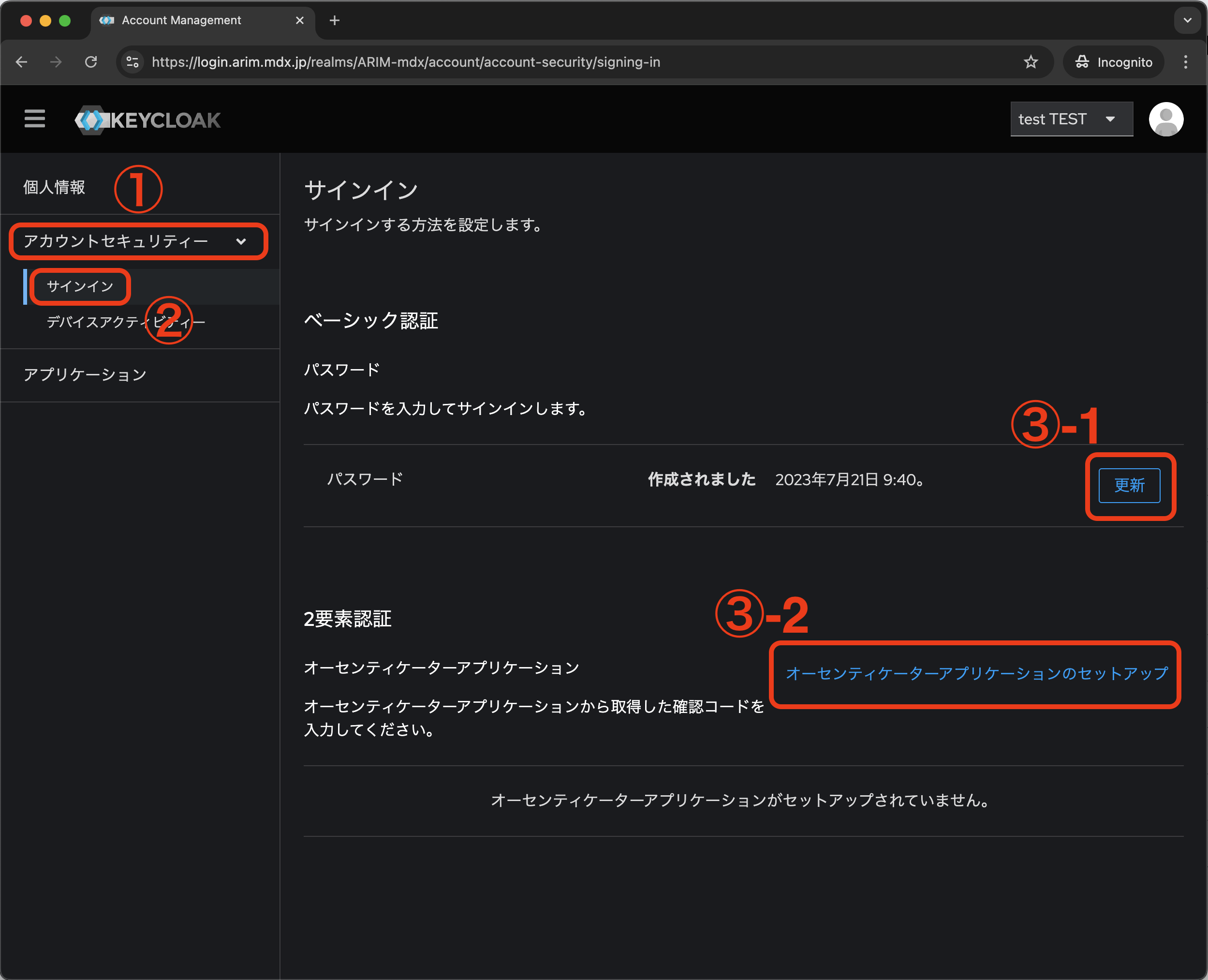
Open Account security and select Signing in.
Click Update next to Password to change your password.
3. Setting Up Two-Factor Authentication
Open Account security and select Signing in.
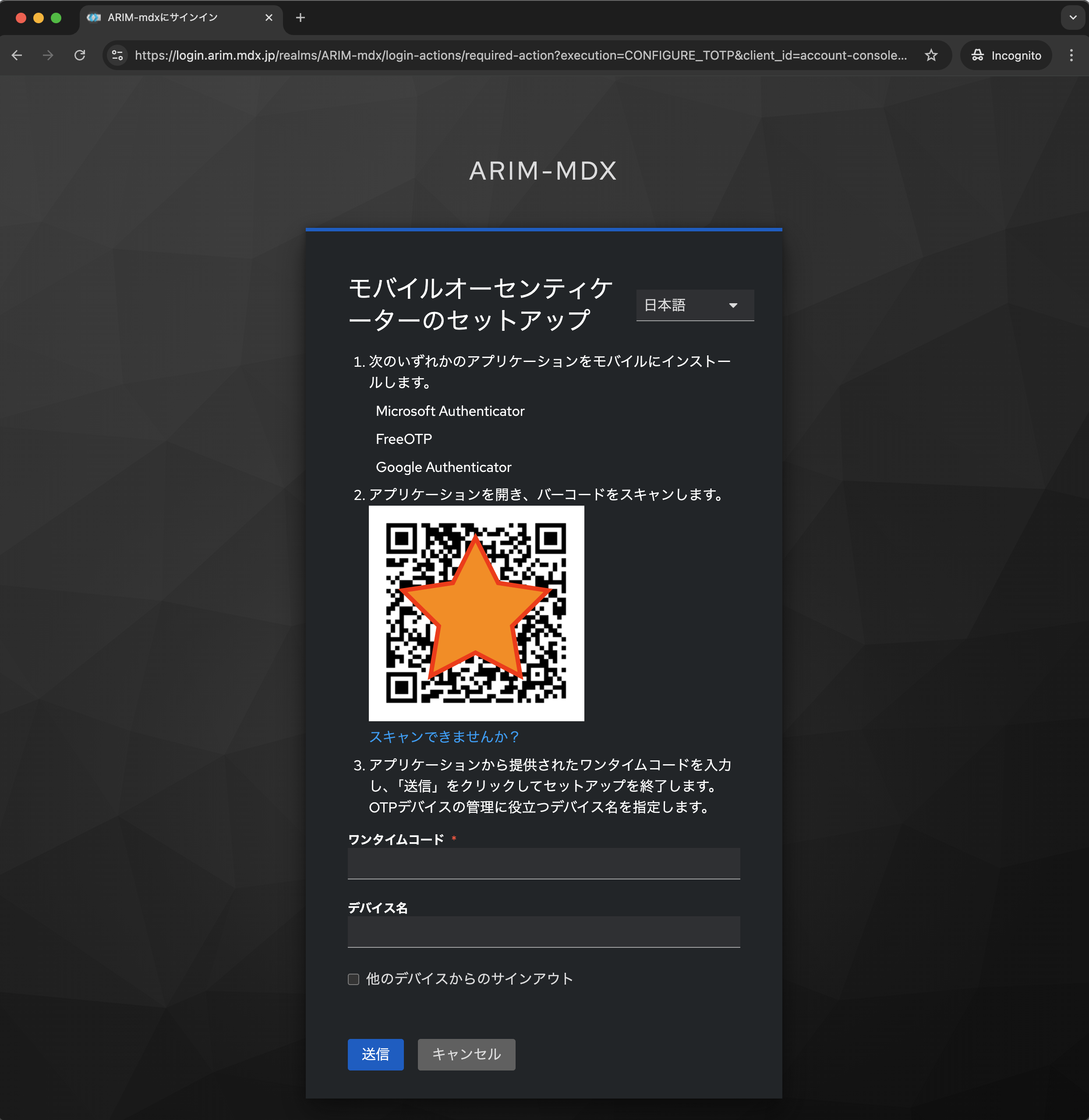
Under Two-factor authentication, click Set up authenticator application.
Follow the on-screen instructions: install an authenticator app (e.g. Microsoft Authenticator, FreeOTP, Google Authenticator) on your mobile device, scan the QR code with the app, enter the one-time code shown in the app, and click Submit.